
Maynor in the Cloud / Beyond the Tenant
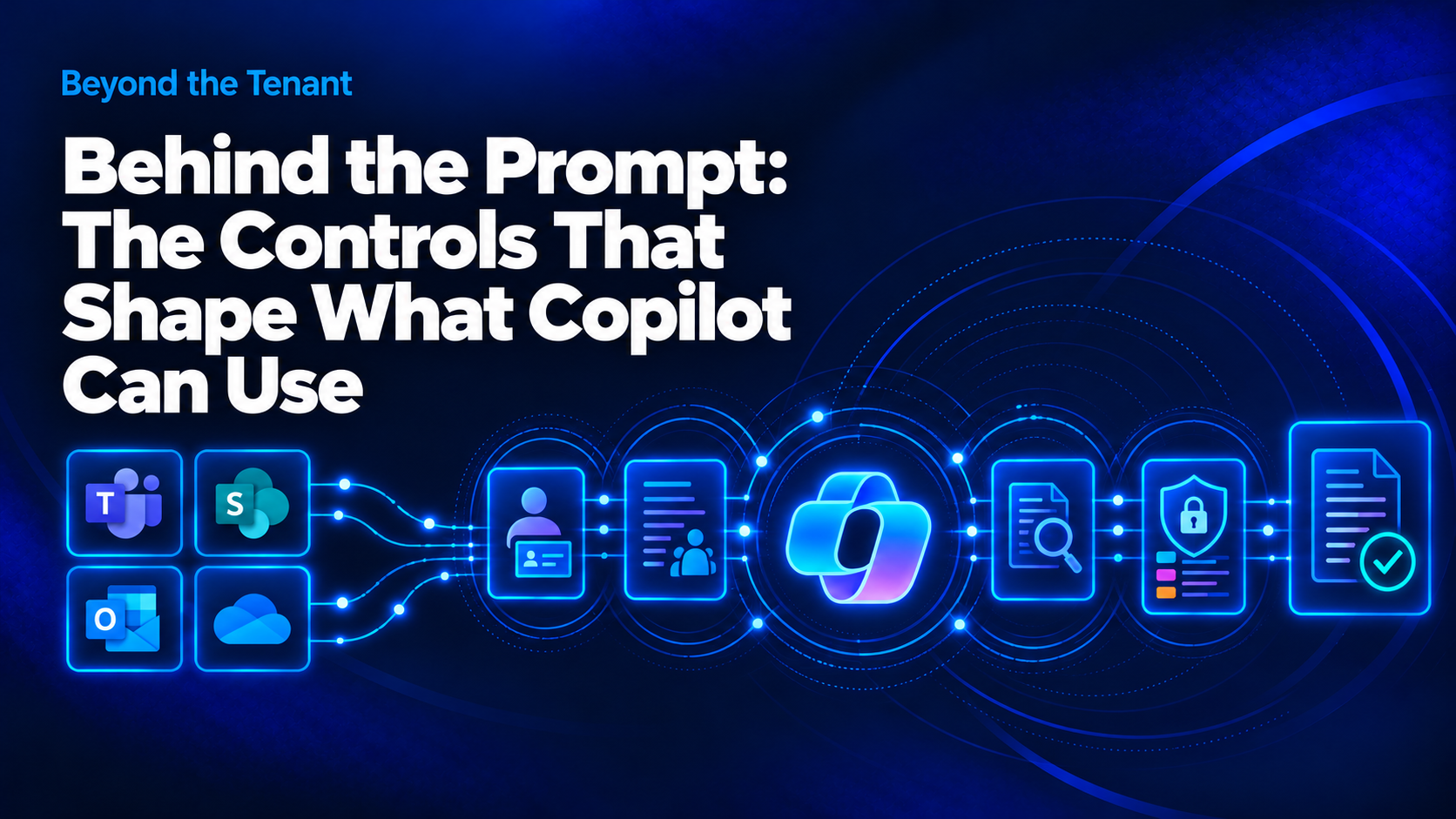
What Copilot can discover and use is not determined by one AI control. It is the combined result of identity, effective permissions, discoverability, information protection, DLP, and audit working together.
Microsoft 365 Copilot Controls: Enforcement and Validation
Current state and target state
A common unmanaged state looks like this:
- collaboration spaces created over several years with inconsistent ownership;
- inheritance broken at library, folder, or item level;
- sharing links that outlive the reason they were created;
- Teams-connected sites where membership and item-level access no longer tell the same story;
- labels published but not applied consistently;
- DLP coverage that varies by workload;
- audit available but not operationalized into an investigation process.
The target state is not “perfect permissions.”
The target state is a governed operating model where high-risk access is reduced, owners are accountable for the content they control, protection follows the data where required, temporary discoverability restrictions are used deliberately rather than confused with security boundaries, audit evidence can support an investigation, and the environment can be revalidated as it changes.
Dependencies and prerequisites
- Licensing. Confirm the entitlement for every control in the design. SharePoint Advanced Management capabilities that support Copilot deployments are available in eligible Copilot licensing scenarios, while Purview capabilities vary by SKU and feature.
- Identity and session controls. Copilot operates as the signed-in user. Identity assurance, Conditional Access, device state, and session controls still matter because they affect how that identity reaches Microsoft 365 data.
- Ownership. Governance decisions need accountable business owners. Ownerless collaboration spaces should be resolved or explicitly assigned to an operational remediation process.
- Audit. Copilot interactions are captured in the Microsoft 365 audit ecosystem. Retention and investigation requirements should be defined before relying on those records operationally.
Microsoft Learn: Microsoft Copilot architecture and how it works
Copilot permissions and sharing
The permission problem is rarely one layer deep.
A Teams-connected site can involve Microsoft 365 group membership, SharePoint permissions, sharing links, and unique item-level permissions at the same time.
A common failure pattern looks like this: a document is shared broadly for a legitimate short-term reason. The sharing path remains after the business need has passed. Later, somebody tightens site-level membership and assumes the risk is gone. It is not, because the item can still have an effective access path that exists independently of the site-level change.
Two things follow from that. First, site-level membership alone is not enough to establish effective access. Second, broad sharing links deserve specific review because they can make content available to a much wider audience than the site owner intended.
Copilot DLP and information protection
Sensitivity labels can classify content, and when encryption is configured they can also enforce usage rights.
For Copilot, the important point is that encrypted content is still evaluated against the user’s rights. If the user does not have the usage rights Copilot needs to extract content, that content is not available to the interaction in the same way as an unrestricted file.
That is different from a label that classifies content but applies no encryption.
DLP adds another enforcement layer. Policies can use sensitivity labels and other conditions across supported Microsoft 365 locations, including Copilot scenarios. The exact behavior depends on the policy, location, mode, and licence.
Microsoft Learn: Purview DLP for Microsoft 365 Copilot and Copilot Chat
So I would not start with a large label taxonomy. I would start with a small business-readable model, validate which labels actually enforce protection, then use DLP where the business requirement calls for an additional control.
Figure 2. Existing Microsoft 365 controls shape what Copilot can discover, use, and return.
Discoverability controls: Restricted Content Discovery
Restricted SharePoint Search used to be a common short-term recommendation for reducing the search and Copilot surface while permissions were reviewed.
That is no longer the design I would recommend for a new deployment.
Microsoft blocked new enablement of Restricted SharePoint Search starting July 31, 2026 and directs organizations toward more comprehensive controls such as Restricted Content Discovery, SharePoint Advanced Management, and Microsoft Purview.
Microsoft Learn: Restricted SharePoint Search
Restricted Content Discovery is site scoped. It reduces organization-wide discovery from selected SharePoint sites and affects Microsoft Copilot discovery scenarios, but it does not change the site’s permissions.
It also has an important limitation: users can still discover content they own or have recently interacted with.
That makes RCD useful as a temporary governance control while access is being reviewed, but not as a security boundary.
Microsoft Learn: Restricted Content Discovery
Connect-SPOService -Url "https://<tenant>-admin.sharepoint.com"# Reduce organization-wide discovery for a site while access is reviewed.$rcd = @{ Identity = "https://<tenant>.sharepoint.com/sites/<site>" RestrictContentOrgWideSearch = $true}Set-SPOSite @rcd
To remove the restriction after remediation and validation:
$rcd = @{ Identity = "https://<tenant>.sharepoint.com/sites/<site>" RestrictContentOrgWideSearch = $false}Set-SPOSite @rcd
I would document the reason for every site placed under this control and define who is responsible for taking it back out. Temporary controls have a habit of becoming architecture if nobody owns the exit condition.
Finding ownership gaps
Start with the SharePoint and SharePoint Advanced Management reports available to the tenant. Use Microsoft Graph when you need to inspect Microsoft 365 group ownership programmatically.
For example, Microsoft Graph supports filtering to Microsoft 365 groups and expanding their owners:
Microsoft Learn: List groups with Microsoft Graph
GET https://graph.microsoft.com/v1.0/groups?$filter=groupTypes/any(c:c eq 'Unified')&$select=id,displayName&$expand=owners($select=id,userPrincipalName)&$top=999
From there, identify Microsoft 365 groups with an empty owners collection and correlate them with the collaboration locations you are reviewing.
That is not a complete SharePoint ownership assessment by itself. Not every SharePoint site is represented by a Microsoft 365 group, so group ownership is one input into the broader governance review.
Auditing Microsoft 365 Copilot
Copilot interaction events are recorded in the Microsoft 365 unified audit log and can include the workload, user, application host, and referenced Microsoft 365 resources.
Microsoft Learn: Copilot interaction events overview
For targeted investigation, I prefer to retrieve the raw AuditData and inspect the actual Copilot event payload rather than assume every record has the same shape.
Connect-ExchangeOnline$auditQuery = @{ StartDate = (Get-Date).AddDays(-7) EndDate = Get-Date RecordType = "CopilotInteraction" SessionCommand = "ReturnLargeSet"}$events = Search-UnifiedAuditLog @auditQuery$events | Select-Object CreationDate, UserIds, RecordType, AuditData | Export-Csv ".\copilot-interactions.csv" -NoTypeInformation
For larger or repeatable programmatic collection, use the Microsoft 365 Management Activity API rather than building bulk-export automation around Search-UnifiedAuditLog.
Failure conditions and troubleshooting
| Symptom | What I would investigate first |
|---|---|
| Copilot surfaces content that appears too broad | Effective permissions, broad sharing links, unique item/folder permissions |
| Copilot cannot discover expected SharePoint content | Search/discoverability controls, permissions, indexing/propagation state, and whether the content is in a discovery scenario the control affects |
| Encrypted content is still usable by Copilot | Label encryption settings and the user’s usage rights |
| DLP does not behave as expected | Policy scope, conditions, enforcement mode, supported location, and licence |
| No useful Copilot audit record is available | Audit configuration, date range, retention, workload, and the actual record payload |
| RCD does not appear to take effect immediately | Propagation time, site size, existing permissions, and whether the user owns or recently interacted with the content |
| Ownerless collaboration space cannot be governed | Establish accountable ownership before treating the access decision as complete |
Investigation
An investigation needs to answer four questions:
- What information was surfaced?
- Which user received it?
- Which source was involved?
- Why did that user have access?
The audit evidence can help with the first three, including references to accessed Microsoft 365 resources when those details are present in the event.
The fourth question is the access investigation.
A broad sharing link or item-level permission is one of the first things I would investigate because site-level membership alone does not explain every effective access path.
The important point is not to build an “AI incident” process that stops at the Copilot prompt. The architecture problem usually crosses identity, permissions, sharing, information protection, and audit.
Validation and rollback
I would use a canary approach.
Place synthetic content carrying representative sensitive patterns in locations with known permission and protection configurations. Use a scoped test group and a repeatable prompt set. Record what is surfaced, what is blocked, and what audit evidence is generated.
Re-run the test after meaningful changes to permissions, labels, DLP, or discoverability controls. That turns validation into a regression process instead of a one-time deployment exercise.
Rollback should be tied to the failure mode:
- If discovery is the immediate concern, apply or tighten the appropriate discoverability control while the underlying access path is investigated.
- If access itself is wrong, remediate the permission, membership, or sharing path.
- If the issue is policy enforcement, correct the label, DLP, Conditional Access, or other control that failed to enforce the design.
- If necessary, remove Copilot access for the affected users while the environment is brought back into a known state.
The most important thing is that rollback is defined before broad enablement and tested at least once. A rollback plan nobody has exercised is still an assumption.
Closing position
Copilot does not create the underlying governance problem. It changes how easily existing access and information-governance weaknesses can be surfaced. That makes Microsoft 365 Copilot data security a permissions and governance problem before it becomes an AI problem.
The controls are not new: permissions, ownership, information protection, DLP, audit, identity, and SharePoint governance already exist.
What AI changes is the urgency.
For architects, the real work is not finding one product switch that makes Copilot safe. It is understanding the effective access model, reducing what should not be broadly reachable, protecting what still needs stronger enforcement, and validating that those controls continue to work as the environment changes.
Explore more: Continue with Beyond the Prompt: Architecting the Controls Around Copilot, or see the AI & Copilot pillar for more Microsoft 365 Copilot readiness, security, and governance guidance.