
Estimated read time: 5 min
Maynor in the Cloud / Beyond the Tenant
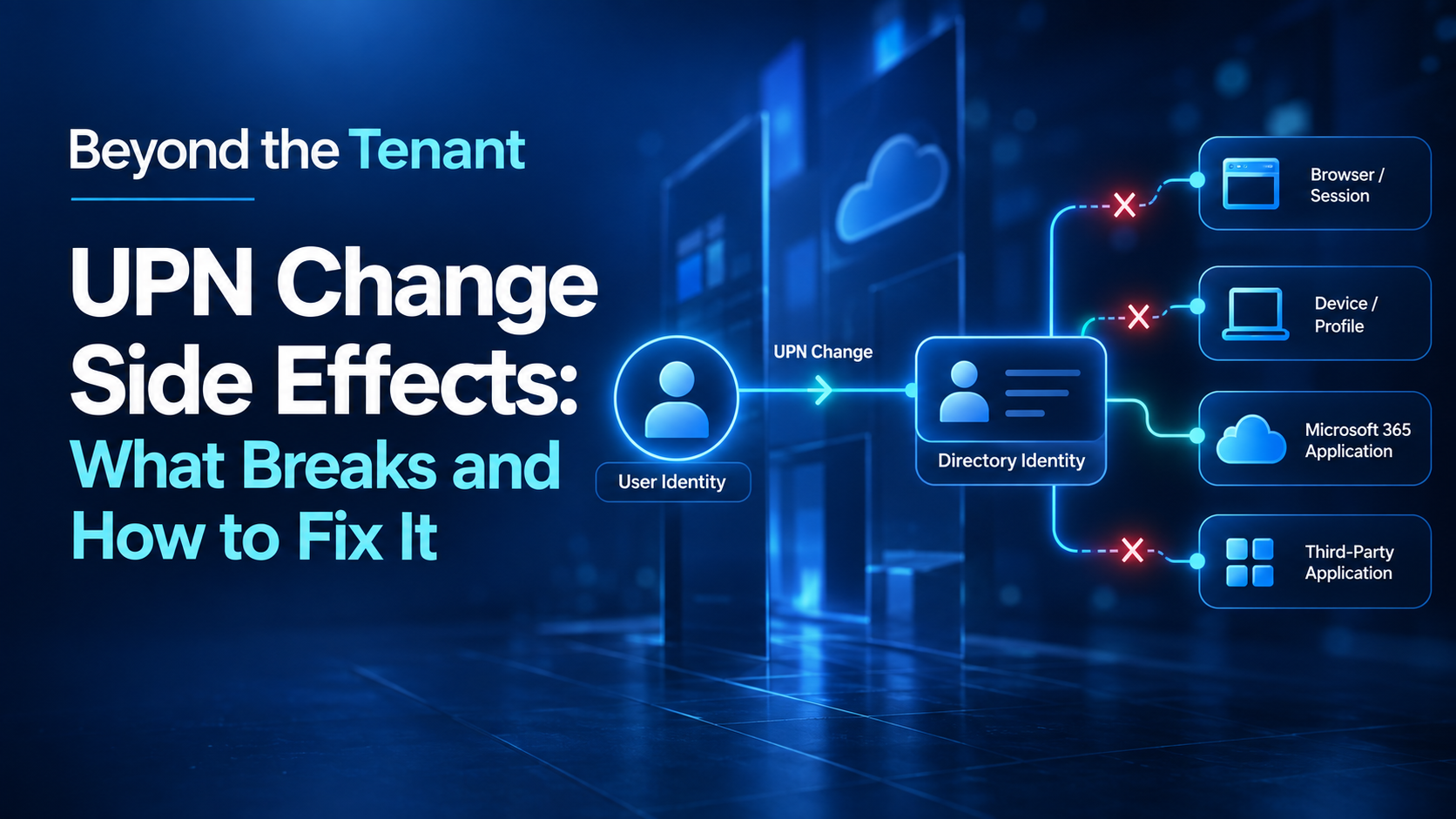
The directory can know the new identity while the applications around it are still using the old one.
Problem
Following a large-scale UPN change, users reported access and authentication issues across several Microsoft and third-party applications.
The incident pattern included OneNote, mobile access, browser sessions, Outlook, SharePoint, Visual Studio, Webex, and other applications during hypercare.
A UPN change can also take time to propagate through Microsoft 365, and different workloads can react differently while the new identity is being recognized across the environment.
Symptoms
- OneNote access or sign-in problems
- Mobile authentication or application-registration issues
- Browsers continuing to use the previous identity
- Outlook and SharePoint issues
- Visual Studio and Webex login problems
- Other application failures reported during hypercare
Not every issue had the same technical cause. That became the first troubleshooting lesson.
Investigation
We treated the problem as a dependency chain rather than assuming the UPN change had failed globally.
- Confirm the new UPN is correct in the directory.
- Allow for propagation before assuming the remaining behavior is permanent.
- Confirm the user can authenticate with the new identity.
- Determine whether the problem follows the user or stays with a specific device or application.
- Check for stale browser, application, or session state.
- Check whether the affected application stores or maps the UPN.
- Confirm authorization after authentication succeeds.
- Retest the original user workflow.
Common Failure Pattern
The evidence does not support one universal root cause for every affected application.
The exact failure mechanism varied by workload.
Generic Fix Pattern
Reauthenticate the user
- Sign out of the affected application.
- Remove stale session state where appropriate.
- Sign back in using the new UPN.
- Retest the failed workflow.
Refresh browser or application state
- Sign out of the existing session.
- Refresh or remove stale account references where appropriate.
- Authenticate using the new UPN.
- Confirm the application is using the expected identity.
Allow workload-specific changes to complete
Do not immediately rebuild profiles or registrations simply because an issue appears after the UPN change. Microsoft documents that OneDrive synchronization can temporarily report permission or synchronization errors while a UPN change propagates. The client can update to the new OneDrive URL after propagation completes.
Reopen OneNote notebooks
Microsoft documents that OneNote notebooks stored in OneDrive may need to be closed and reopened after a UPN change.
Check application-side identity mappings
- Verify whether the application uses the UPN as an identifier.
- Compare the configured identity with the new UPN.
- Update the mapping where required.
- Reauthenticate.
- Validate both authentication and authorization.
Validation
The issue is not resolved just because the user can sign in.
The failed business workflow has to work again.
Validation should cover browser access, desktop applications, mobile access, critical Microsoft 365 workloads, affected third-party applications, and authorization after authentication.
Hypercare Lesson
The migration also exposed an operational problem. Not every incident raised during hypercare was initially classified correctly as being related to the UPN change. That made it harder to separate true migration defects from unrelated support issues.
A useful classification model is:
- Change-caused
- Change-exposed
- Unrelated
- Unknown
That keeps the troubleshooting data usable and makes recurring failure patterns easier to identify.
Lesson Learned
A UPN change should be treated as an identity change with dependencies across applications, sessions, devices, and user workflows—not simply as a directory attribute update.